⚡
Smooth, sharp video
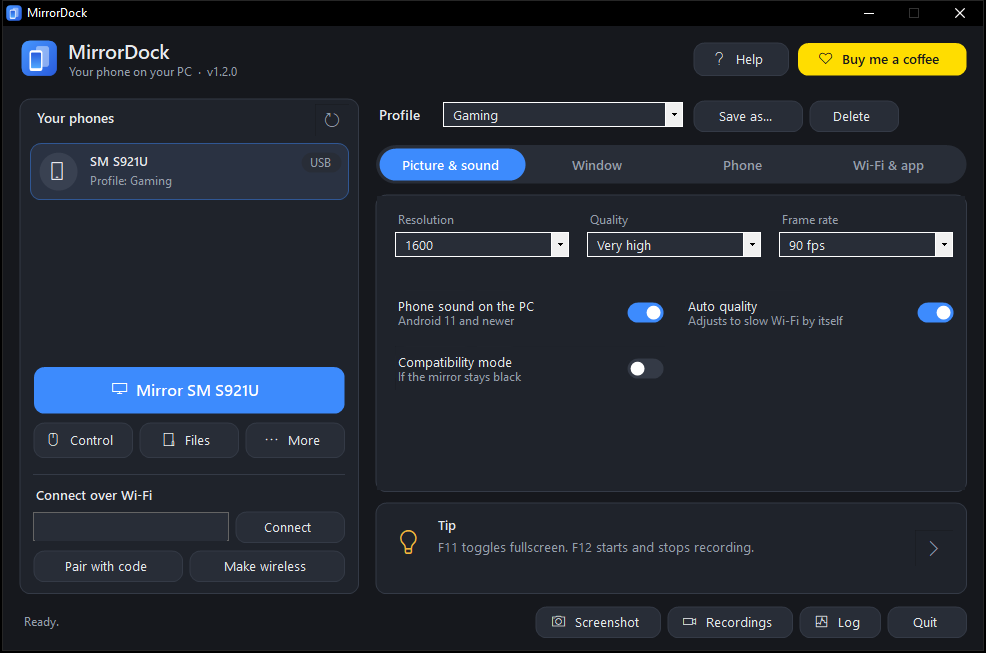
Hardware H.264 from the phone, decoded by Windows itself, at up to 120 fps. If the connection hiccups it skips ahead instead of lagging behind.
Free & open source · Windows 10 and 11
See your phone in a window and use it with your mouse and keyboard. Hear its sound, drag files onto it, record it, and play phone games with a controller. No account, no ads, nothing in the cloud.
v1.2.0 · 8.4 MB · no admin rights needed · Android 7 and newer
Features
Built from scratch for Windows: hardware video, a real Windows interface, and no command window left open behind it.
Hardware H.264 from the phone, decoded by Windows itself, at up to 120 fps. If the connection hiccups it skips ahead instead of lagging behind.
Hear games, videos and calls through your PC speakers or headset (Android 11 and newer), with a mute button.
Click to tap, drag to swipe, scroll, type and paste. Ctrl+drag pinches to zoom. Real keyboard mode sends every key like a plugged-in keyboard.
Drop an APK to install it, or any file to send it. Browse the phone's storage and copy files to the PC.
Copy on the phone, paste on the PC, and the other way round, including letters like ë, ç and emoji.
Plug an Xbox controller into the PC and the phone sees a real controller. PlayStation pads work through Steam or DS4Windows.
Open any phone app in a separate window while you keep using the phone, or open a whole second screen (DeX-style on Samsung).
Record to MP4 with sound (F12) and take screenshots in one click.
Go wireless in one click. One more click turns it off and closes the port, and MirrorDock turns it off by itself after 30 idle minutes.
Phone notifications pop up on your PC while you mirror.
Quality drops by itself on slow Wi-Fi and comes back when it improves. Profiles for gaming, movies, reading or presenting.
MirrorDock downloads new versions, checks their SHA-256, and installs them for you. Light and dark theme included.
New in 1.2
No mirror window at all. Look at the phone itself and use the mouse and keyboard on your desk, with a real pointer on the phone and zero video lag. Great for typing long messages, or when you just want the big keyboard.
Shortcuts
| On the PC | On the phone |
|---|---|
| Click / drag | Tap / swipe |
| Ctrl + drag | Pinch to zoom |
| Right-click or Esc | Back |
| Middle-click | Home |
| Mouse wheel (Shift for sideways) | Scroll |
| Typing, Ctrl+V | Type / paste |
| Drop a file | APK: install. Other files: copy to Download |
| F11 / F12 | Fullscreen / start and stop recording |
Get started
Download the installer and run it. No admin rights needed. Or grab the portable zip and run it from any folder.
On the phone: Settings › About phone, tap Build number 7 times, then turn on Developer options › USB debugging.
Connect with a data cable, tap Allow on the phone, and click Mirror. The built-in setup guide checks each step for you.

For Windows 10 and 11, 64-bit or 32-bit. Works with Android 7 and newer.
Every release lists SHA-256 checksums so you can verify your download. All releases
FAQ
Yes. MirrorDock is free, has no ads, no account and no paid version, and its full source code is on GitHub under the MIT license. If it saves you time you can buy me a coffee, but you never have to.
MirrorDock is new and isn't code-signed (signing certificates cost hundreds of dollars a year), so SmartScreen warns about it the first time. Click More info › Run anyway. Some antivirus programs scan new files for a minute before letting them run. You can compare the file's SHA-256 hash with the one on the release page, or build it yourself from the source.
No. Video, sound and input go straight between your PC and phone, over USB or your own Wi-Fi. The only internet request is an optional once-a-day check for a new version on GitHub, which you can turn off.
Android 7 and newer. Sound needs Android 11 or newer. It's tested on a Samsung Galaxy S24 running Android 17. iPhones aren't supported.
No root and nothing from the Play Store. MirrorDock uses USB debugging, which Android has built in, and runs a small helper from the phone's temporary folder while you mirror.
Use it on networks you trust, like your home Wi-Fi. One click turns Wi-Fi debugging off and closes the port, MirrorDock turns it off by itself after 30 idle minutes, and it asks when you quit. A new PC still has to be approved on the phone.
Turn on Compatibility mode in the app. Windows "N" editions also need the Media Feature Pack from Microsoft.
Open Help › Copy diagnostics in the app, then open an issue on GitHub and paste it. Diagnostics shorten serial numbers and hide IP addresses.
MirrorDock is built by one person in their spare time. If it's useful to you, a coffee helps keep it going.